WordPress & WooCommerce
Accept USDT, USDC, BTC, ETH, SOL and TRX on WooCommerce with the official PayStarSea plugin. Each checkout receives order-specific payment instructions and a unique derived address for the selected asset and network.
Install the official plugin
Get "PayStarSea Crypto Payment Gateway" from the WordPress.org plugin directory, or search for it in your WordPress admin under Plugins > Add New.
1 Setup Merchant API Key
Generate API Key
Log into your PayStarSea Merchant Dashboard and navigate to the API Management section. Create a new set of API keys (API Key & Secret Key) for your WordPress store.
Web Security Configuration
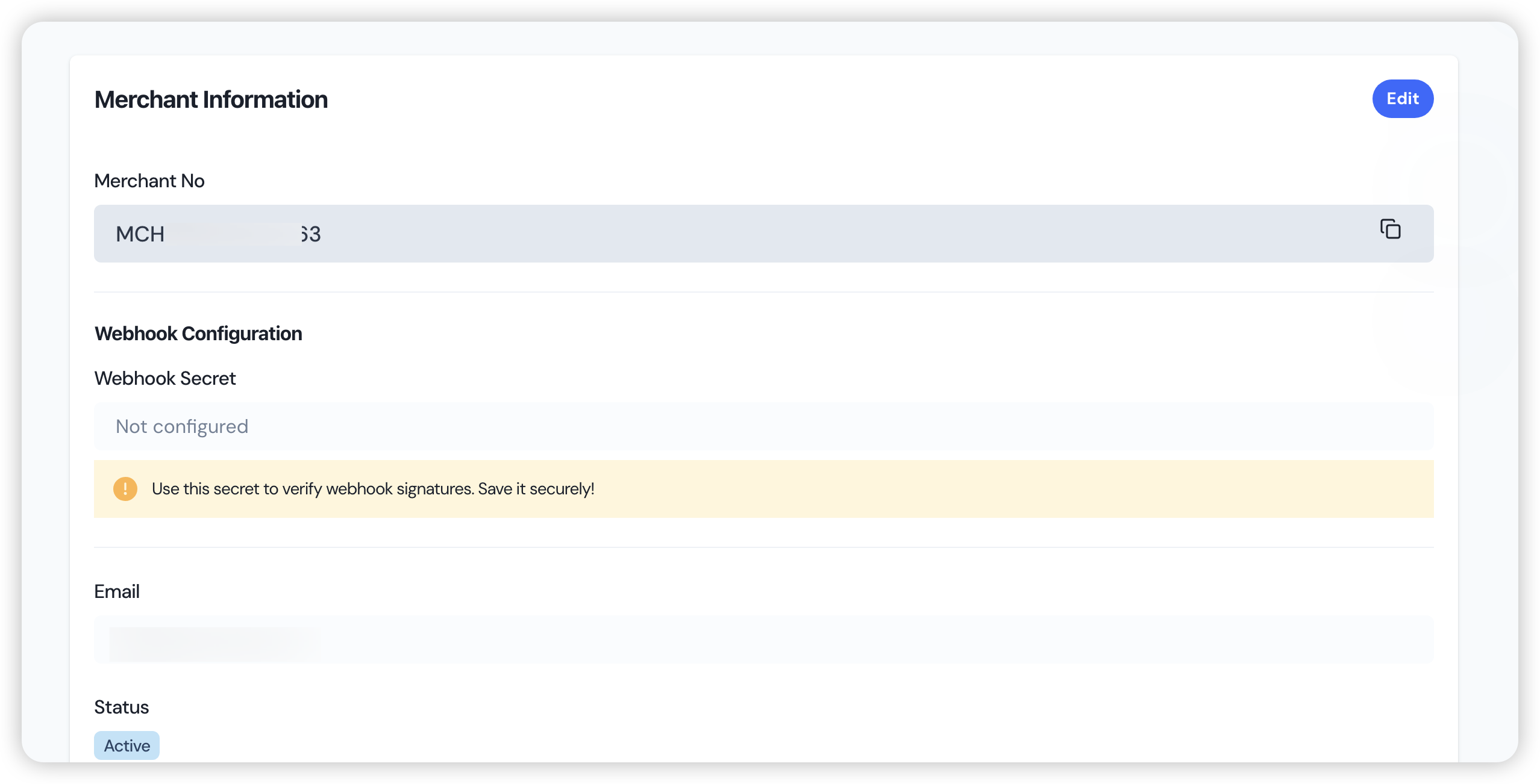
API Key Generation
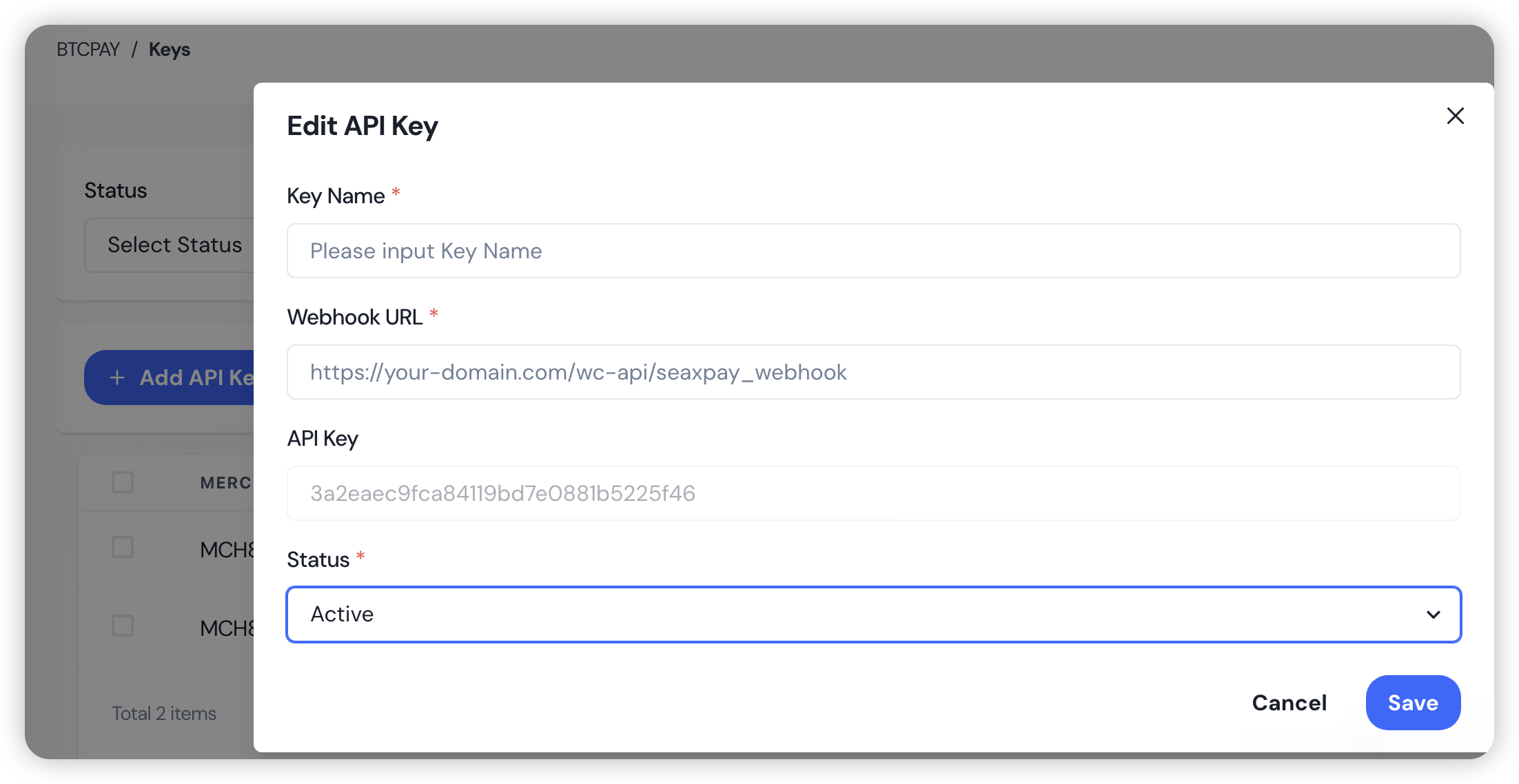
2 Configure WooCommerce Settings
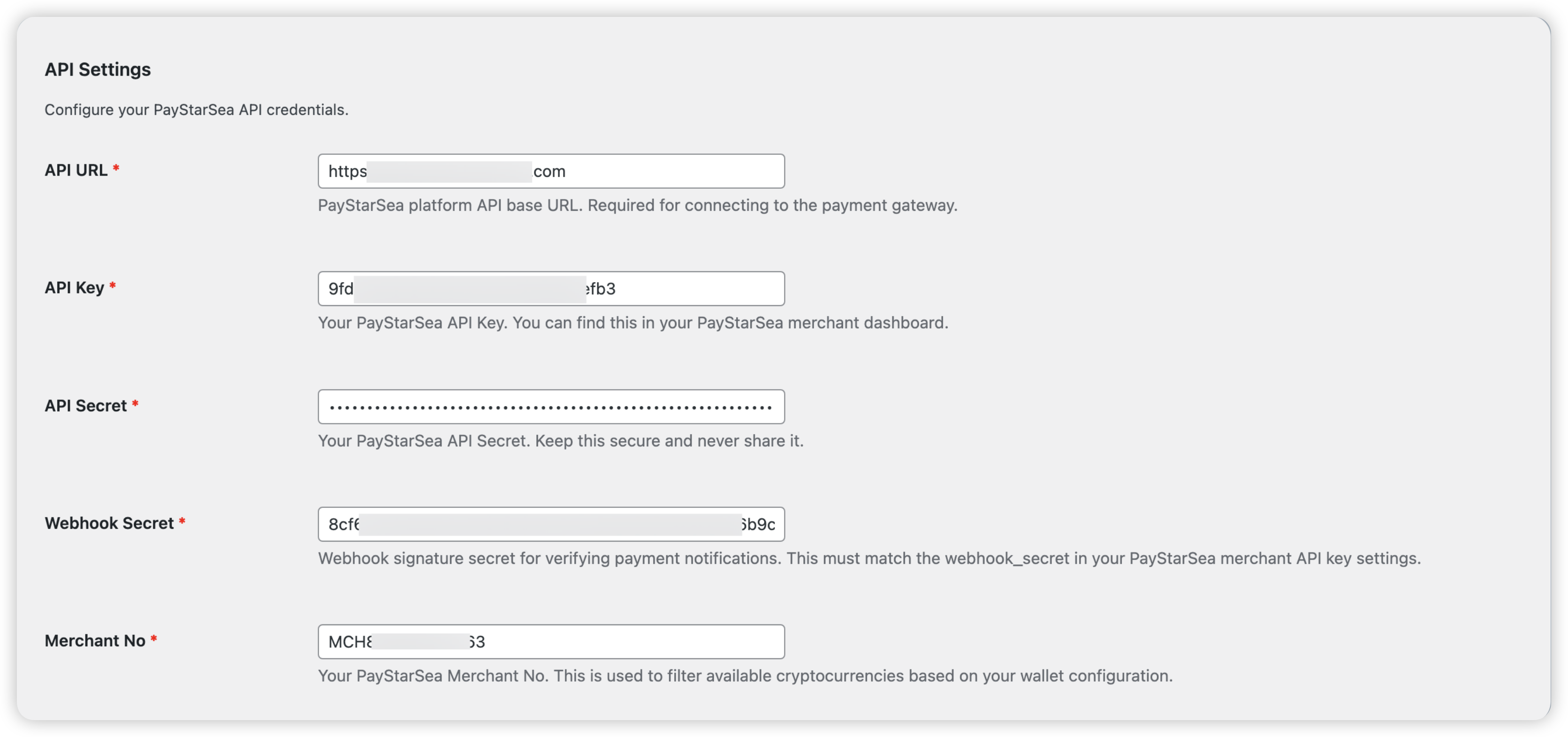
Enter API Configuration
In your WordPress admin panel, go to WooCommerce > Settings > Payments > PayStarSea. Enter the API Gateway URL and the keys generated from your dashboard.
3 Manage Supported Cryptocurrencies
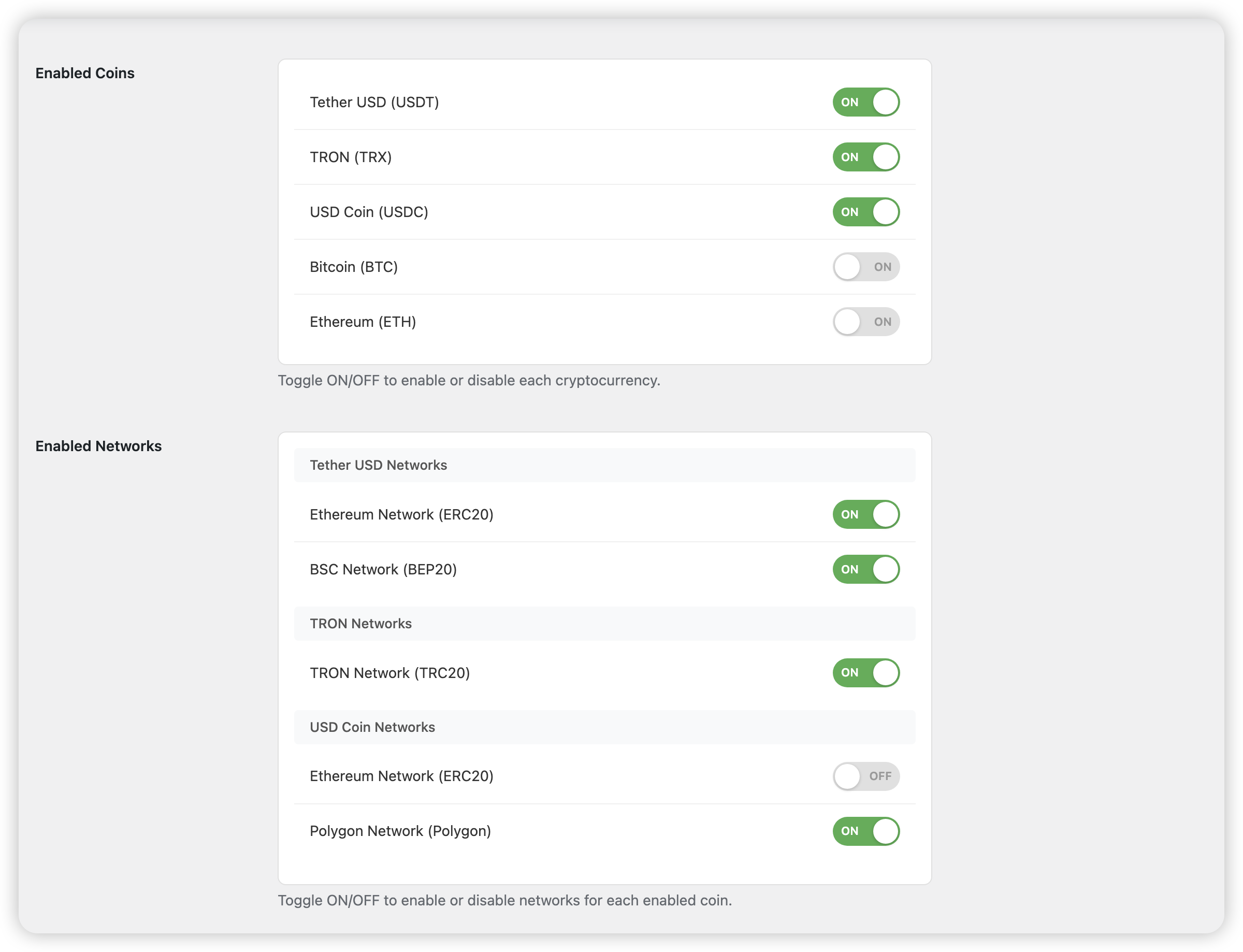
Enable Coins & Networks
In the plugin settings, select the coins you wish to accept by toggling their visibility. PayStarSea supports USDT (TRC20, ERC20, BEP20, Solana), USDC (ERC20, Polygon, Solana), BTC, ETH, SOL and TRX. Ensure the respective coins are also enabled in your PayStarSea Merchant Dashboard.
Adding Supported Coins
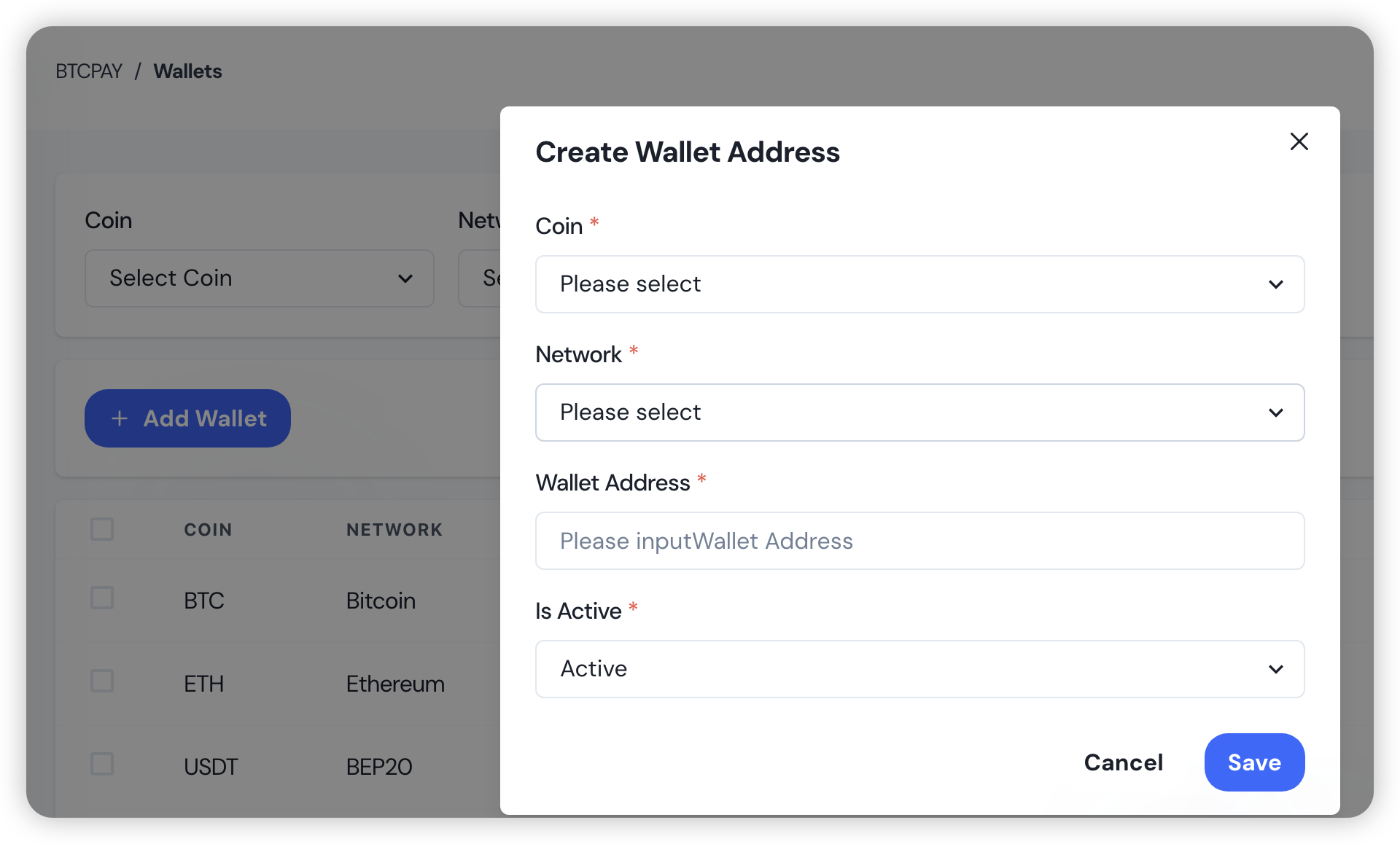
Coin Configuration Settings
Configuration Complete!
Your checkout page will now display PayStarSea as a payment method. PayStarSea generates a unique derived address for each order, monitors the selected blockchain and sends a webhook update after the required confirmation conditions are met. Network fees and withdrawal timing depend on the selected network and applicable product settings.